

Submitting Assignments
HTML and CSS Files
After completion of each assignment upload your site folder (as see here) to Box. Since we'll be adding things to the site folder over time, always upload your latest site folder and replace it with the old one. This way we always have the latest version on Box.
PDFs and Printouts
Each assignments needs to be documented as a PDF and a printout (from the PDF).
Before you make the PDF:
On smaller browser windows you composition can "break". This happens when two thick lines overlap. In that case the fifth column drops a row, for example. In order to make sure your composition doesn't "break" that way, make sure you test the layout in a browser window that's around 960 x 720px big. This size seems to be close to the result the browser renders as a PDF. If the composition is okay at 960px and above you can save it as a PDF. In the end we want 5 columns and 5 rows intact. It may happen that the layout doesn't fit on smaller windows but that's fine for now. We'll address this issue when we do a responsive layout later on.
Safari has a "responsive view" option that you can activate to figure out your current browser window's pixel dimensions (see image below). Other browsers may not have this option installed by default. But you can install a responsive design extension usually. Check your browser's extension list and search for "responsive design" or "window resize".
If the layout doesn't fit in a 960 x 720px browser window go to your CSS file and reduce the thickness of your borders slightly.
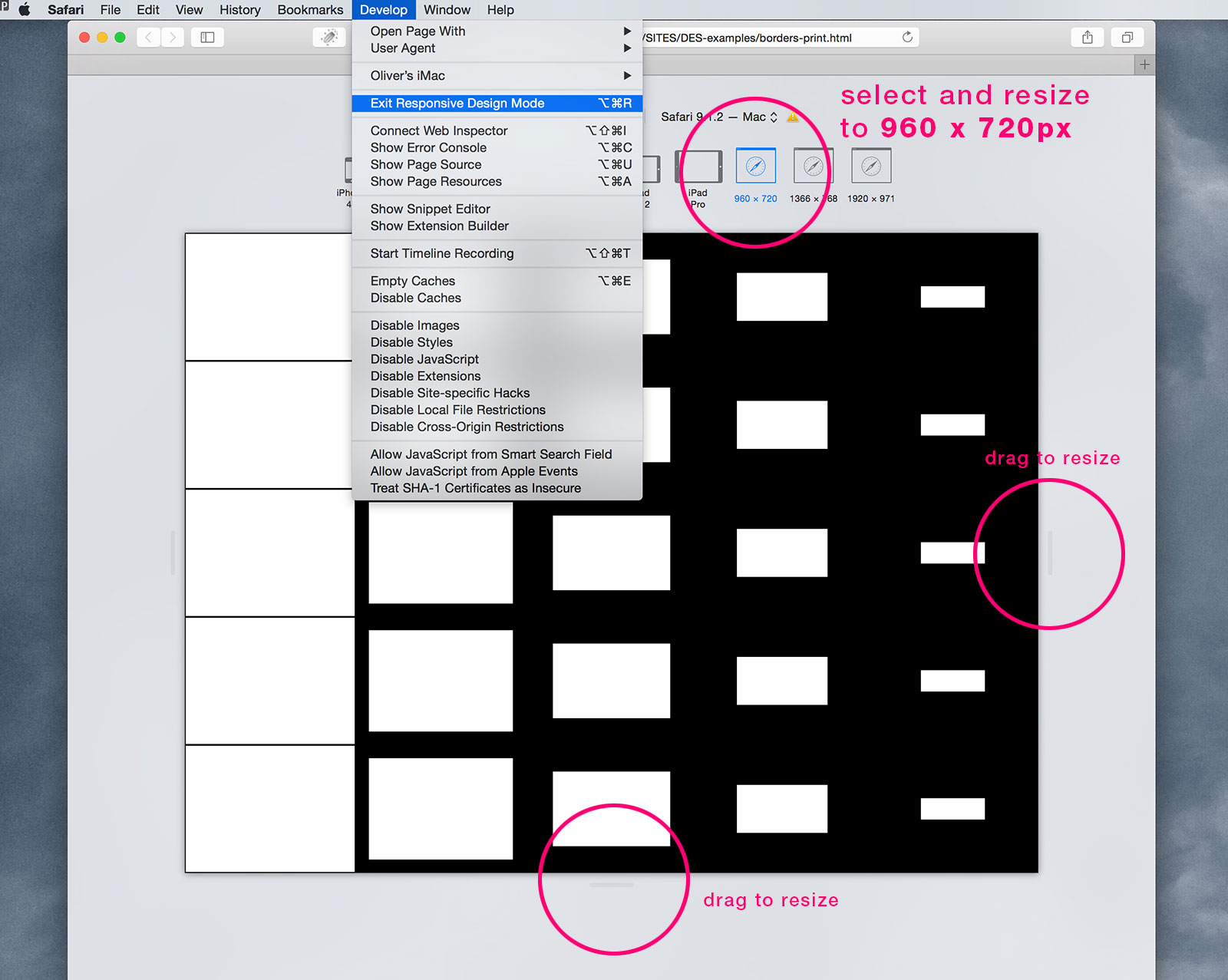
Make PDF:
Preview/open your HTML document in a browser (I used Safari for this example but others may work the same way). To preview either use the option from within Dreamweaver (globe icon at the lower right) or drag your HTML document into the browser icon in your dock (Mac OS). Go to Safari's top menu and choose FILE > PRINT.
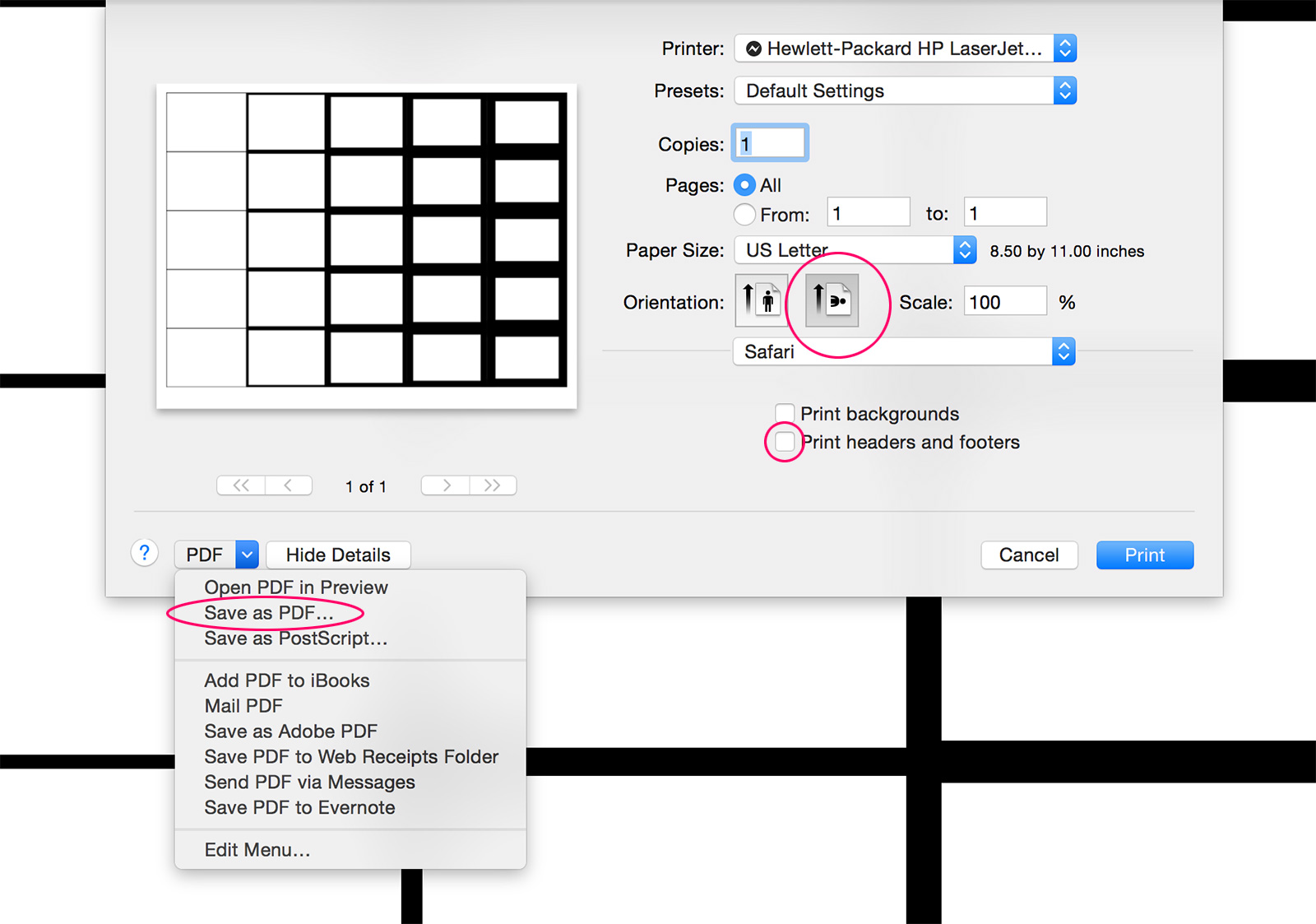
Then adjust the printer dialog with the following settings:
- — Choose US Letter as paper size
- — Click the landcape orientation
- — uncheck "Print headers and footers"
- — in the lower left corner choose "Save ad PDF" from the "PDF" pull-down menu
This PDF can be printed but the layout is slightly too large. In order to adjust the print size open up the PDF in Illustrator, choose "Select All" and scale everything to 90%. Finally make sure the layout is in the center of the artboard (you can use the align to artboard option in Illustrator). Save the PDF and print it out.
Upload PDFs to Box
Use a similar files and folder setup as you did for your HTML and CSS files. Then upload your PDFs into the appropriate folder. In other words: You'll have two separate folders in you Box directory; one for you coded files and the other one with your PDFs.